Why Use an AI Image Generator for Roblox Art?
The world of AI-driven creation is rapidly reshaping Roblox asset design. AI-powered tools let even non-artists create stylized or realistic images, making them ideal for thumbnails, promotional art, icons, or concept screenshots.
How It Works — Step by Step
- Open the AI-image generator.
- Enter a prompt describing the scene, mood, and Roblox-style vibes you want (see examples below).
- Generate image. Review and, if needed, refine prompt or settings (lighting, camera angle, colors).
- Download the result — use as Roblox thumbnail, promo art, social post, etc.
Example Presets & Prompts (Roblox Style)
Below are 4 example “presets” / use-cases you might use. You can plug these prompts into Nano Banana Pro (or any capable AI generator) to get Roblox-style output. You may need to tweak slightly depending on results — e.g. adjust lighting, pose, or background.
“Roblox style, 3D avatar portrait, colorful blocky Roblox aesthetic, heroic pose, dynamic lighting, soft depth-of-field, 4K resolution, plain background.”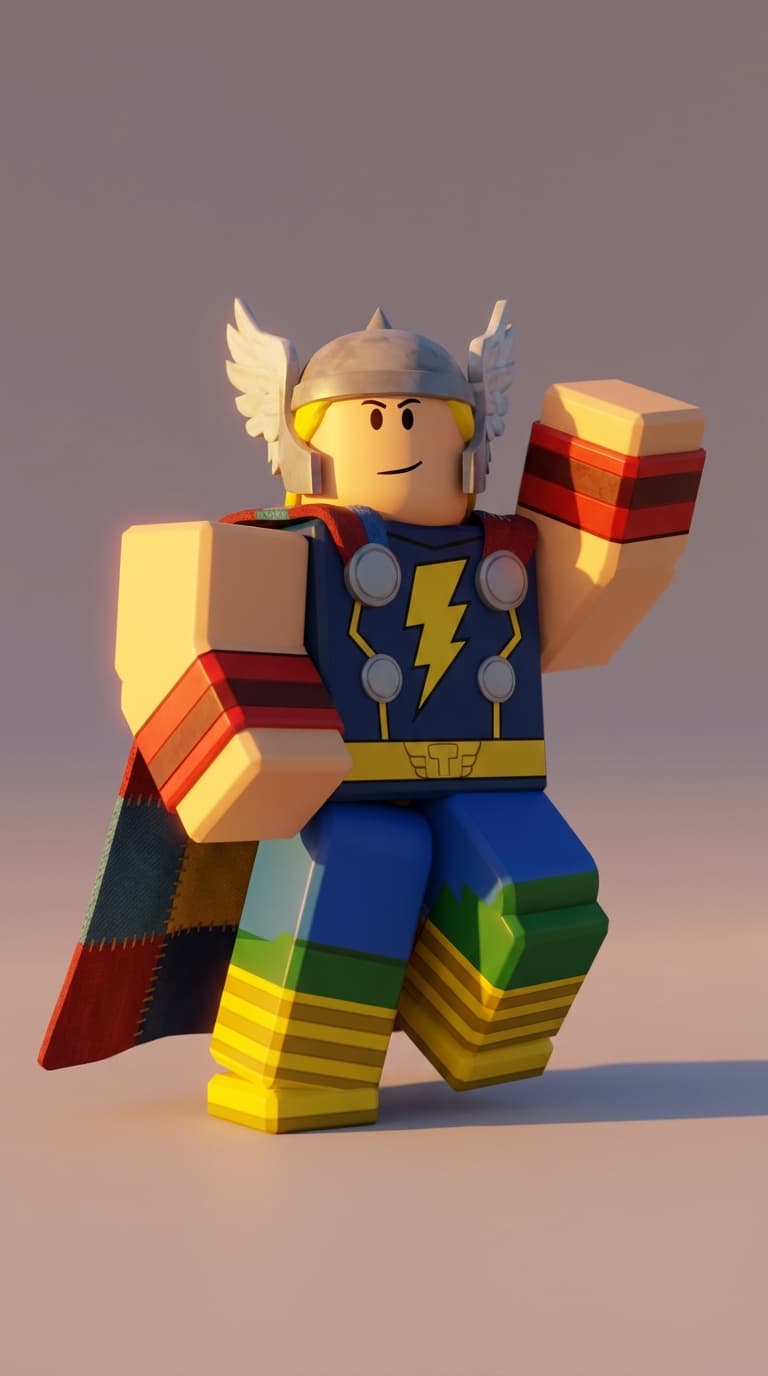
“Epic Roblox fantasy game thumbnail, blocky characters wielding swords and magic, vibrant fantasy village background, warm sunset lighting, cinematic composition, bold colors, high saturation, eye-catching.”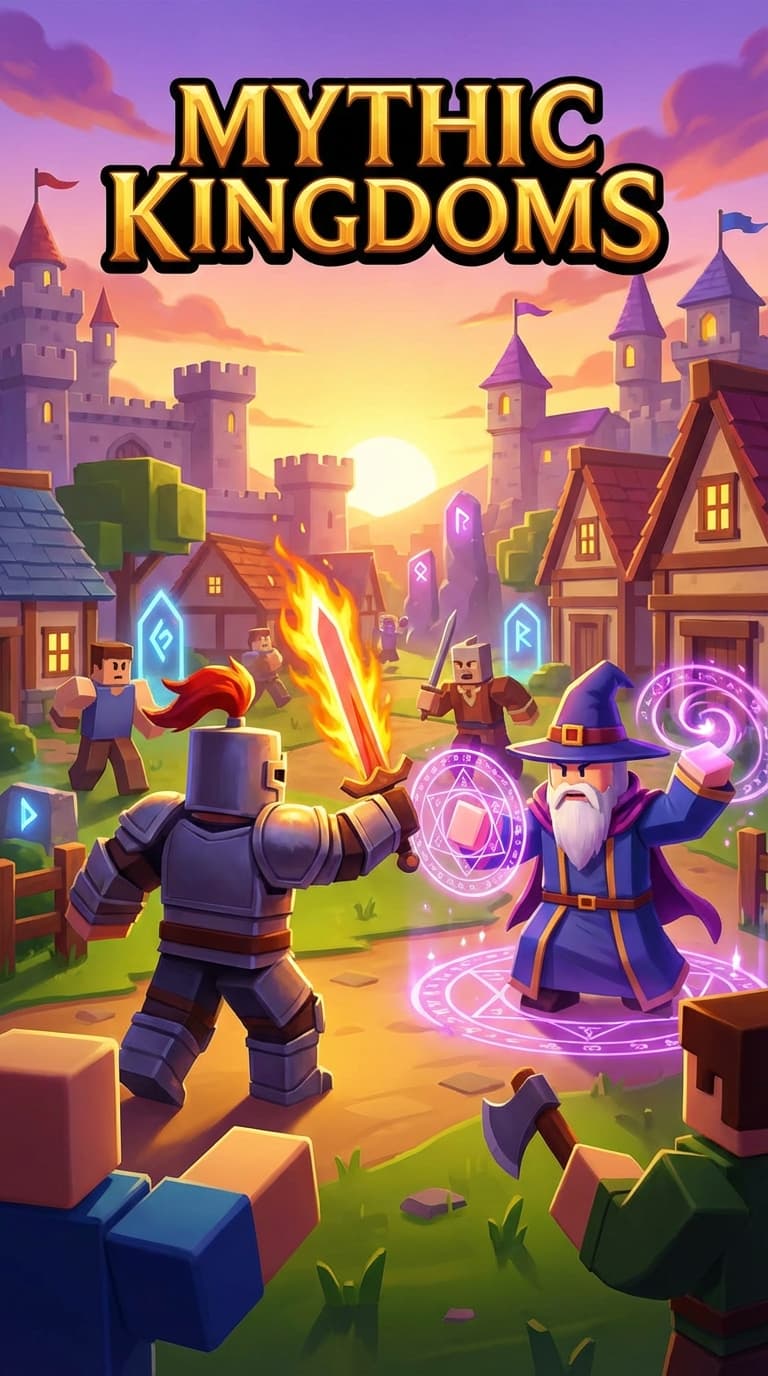
“Roblox obby banner art, cartoon blocky characters jumping over obstacles, colorful obstacle-course, cheerful atmosphere, exaggerated expressions, stylized clouds & sky, high energy, stylized 1920×1080 resolution.”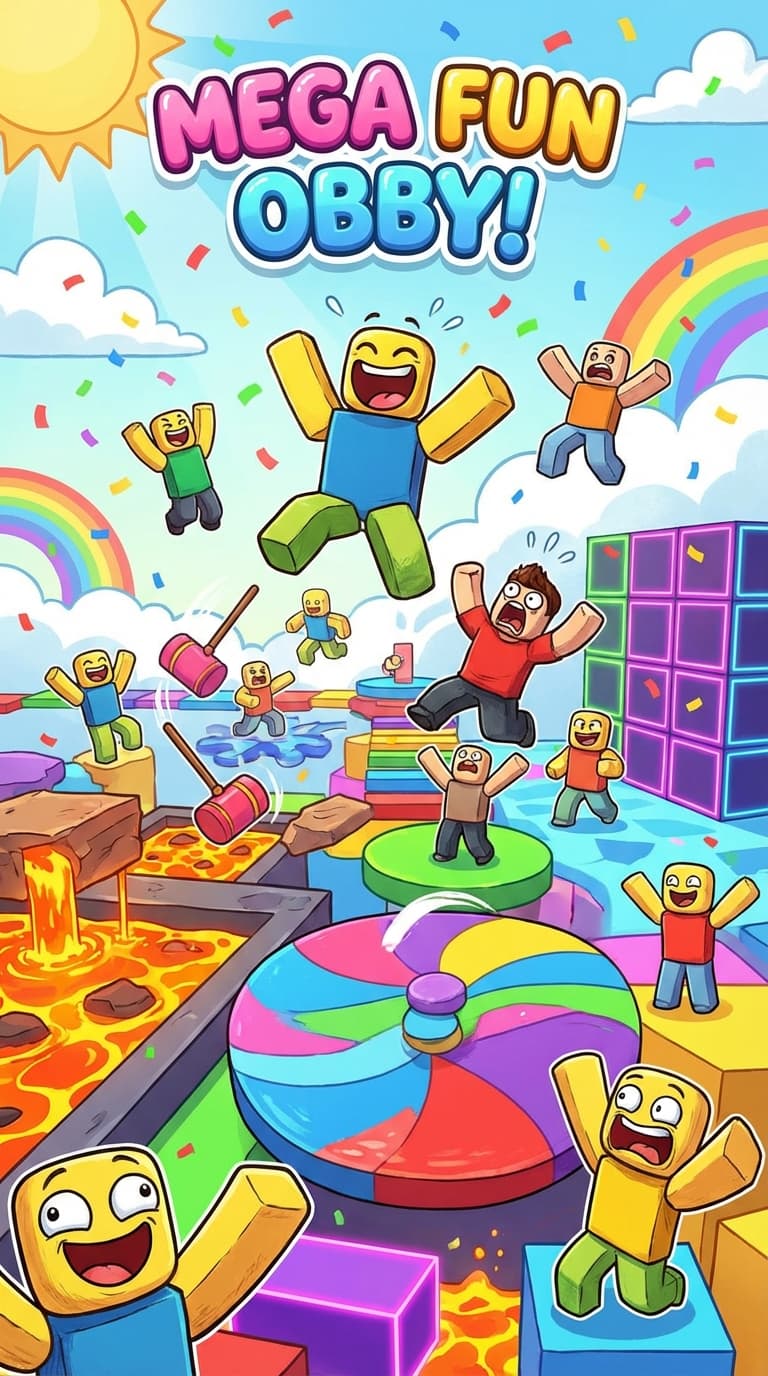
“Realistic 3D figurine of a Roblox-style character, dramatic studio lighting, soft shadows, slight film grain, 2K resolution, grayscale background, cinematic look.”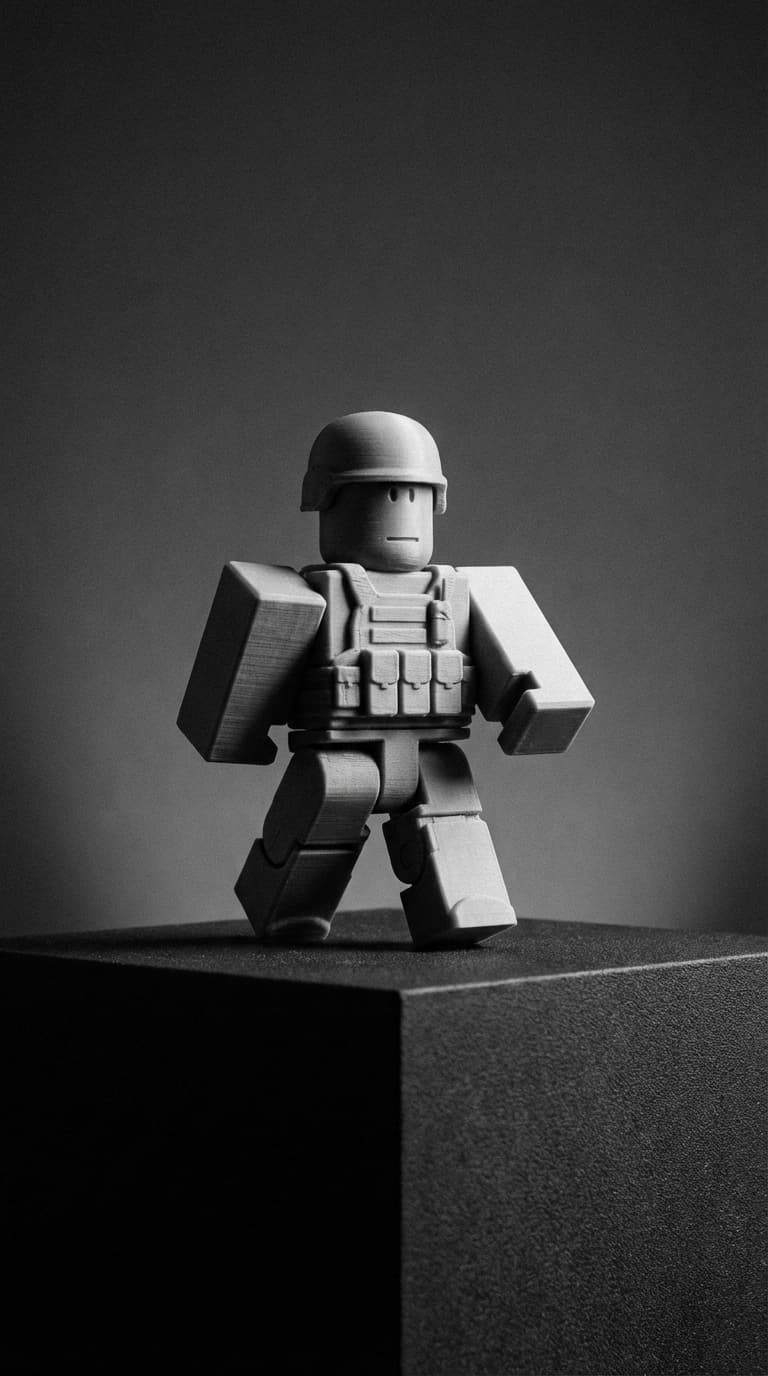
👉 You can also combine prompts with image inputs (if supported by your AI tool) for consistency or to base on an existing avatar. Multi-image fusion and style consistency across revisions often yield better results.
Tips for Better Results
- Include style-specific keywords: “Roblox style”, “blocky”, “cartoonish”, “vibrant colors”, “high saturation”.
- Specify resolution and aspect ratio (e.g. “1920×1080” or “4K”).
- Tweak lighting & mood: “sunset lighting”, “studio lighting”, “cinematic”, “soft shadows”.
- If using character references or avatars — upload reference images for consistent results.
- Iterate: generate multiple versions, then pick the best, optionally remix or refine prompt for tweaks.
Cautions & Best Practices
While AI-generated images are powerful, keep in mind:
- AI aesthetic might diverge — sometimes looks too realistic or too abstract for Roblox. You may need manual tweaks in an editor.
- Make sure your output matches the Roblox community’s style guidelines (if using for public game thumbnails/icons).
Wrapping Up
AI tools democratize Roblox-style art creation. Even if you don’t consider yourself a GFX artist, with the right prompt and a bit of trial-and-error you can produce compelling thumbnails, banners or promotional assets — fast. Use this guide as your starting point, experiment with prompts, and iterate till you get your ideal look.
Some of the ideas & inspirations in this article are also influenced by community resources like bloxgamers.com.